This issue happens mostly using the Chrome browser. These are the resolutions:
1- Clear the browser cache resolves the issue. Follow these steps:
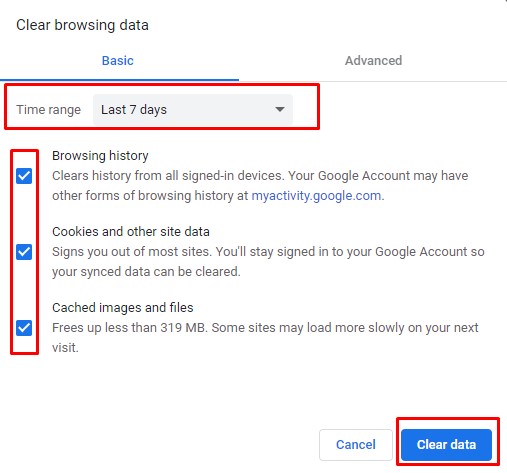
- In Chrome, go to the top right with the three dots and select Settings->Privacy and Security->Clear browsing data
- Select at least Browsing history, cookies, other site data and cached images and files.
- Select at least the last 24 hours for Time range, if that doesn't work, try a longer period of time.
- Once the cache has been cleared, close Chrome, re-open it and attempt to reach WorldServer again.
- If the above doesn't work, go back to the Clear browsing data page, only select the cookies, and delete going back to all time. Then try #4 again.
If it happens with another Browser such as Mozilla Firefox, try to clear the Cache and restart the Browser.
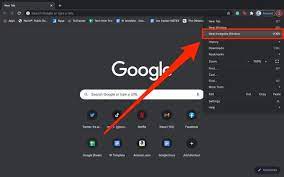
2- In Chrome, another workaround is to open a New Incognito window and log in to WorldServer in "incognito" mode. Once logged in, repeate the actions that led to the error. You won't encounter the error anymore.